Capture Filters vs Display Filters Explained: One Decides What You Keep, the Other Decides What You See
Wireshark has two filter boxes, and they do not speak the same language — that one fact causes a large share of beginner confusion and a few real lost captures. A capture filter is a bouncer at the door of the recording: it is set before you press start, it checks each packet as it arrives, and anything it turns away is never recorded at all. A display filter is a highlighter over the finished recording: it shows you only the packets you ask for, but every packet stays in the file, and changing your mind costs nothing. This article puts the two side by side, does the same job in both languages, and gives a simple rule for when each one is the right tool.
The short answer
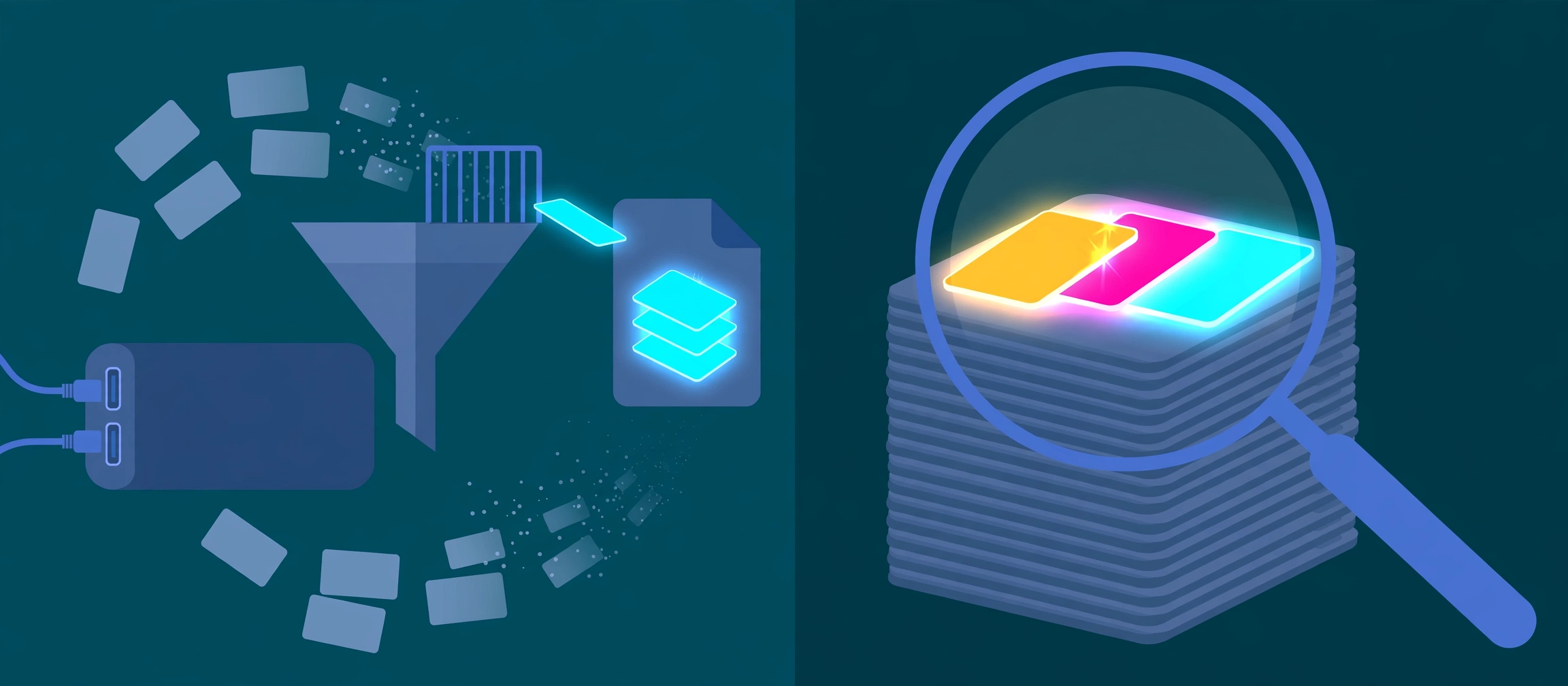
What is the difference between a capture filter and a display filter? A capture filter decides what gets recorded. A display filter decides what gets shown. A capture filter is written in BPF syntax, is entered before you start capturing, and runs while packets arrive: matching packets are saved to the capture file and non-matching packets are discarded on the spot. A display filter is written in Wireshark's own syntax, is entered above the packet list after (or during) a capture, and simply hides the packets that do not match. The Wireshark project states the warning in exactly those terms: capture filters like tcp port 80 are not to be confused with display filters like tcp.port == 80 — the first reduces the size of the raw capture, the second hides packets from view.
Think of a security camera in a warehouse. A capture filter is deciding, before you press record, that the camera will only record when the loading-bay door moves — everything else that happens that night simply never becomes footage. A display filter is sitting down with a full night of footage and fast-forwarding to only the loading-bay scenes: the rest of the night is still on the recording, and you can rewind to it whenever a new question comes up. Same building, same night — one choice is permanent, the other is just a way of looking.
The two, side by side
| Question | Capture filter | Display filter |
|---|---|---|
| When is it applied? | While packets are being recorded, before they reach the file | After packets are recorded, while you look at them |
| Who runs it? | The capture library (libpcap / Npcap), the same engine tcpdump uses | Wireshark itself, over its decoded view of each packet |
| Which language? | BPF syntax: host, src, dst, net, port, protocol names, and / or / not | Wireshark field syntax: dotted field names, == and != comparisons, contains, and boolean operators |
| Can you change it mid-capture? | No — it is set before starting and cannot be modified during the capture | Yes — change it at any time, as often as the question changes |
| What happens to packets that do not match? | They are not recorded. They are gone, and no later step can recover them | They are hidden from the packet list only. Clear the filter and they are all back |
| How deep can it look? | Shallow by design: addresses, ports, protocols, networks, and fixed byte offsets in headers | As deep as Wireshark can decode: any protocol field, including DNS names, HTTP requests and TCP analysis flags |
| Best job | Keeping a long or busy capture small when the target is already known | Investigating — narrowing a capture step by step as you learn what happened |
Read the discarded-versus-hidden row twice — it is the whole comparison. Every other difference follows from it. Because a capture filter throws evidence away, it is kept deliberately small and fast. Because a display filter throws nothing away, it can afford to be rich, slow and precise.
Why the syntax is different — it is not an accident
A capture filter has to keep up with the wire. It runs on every packet at capture time, often on a busy interface, so BPF was designed to test only things that sit at fixed, cheap places in a packet: this host, that network, this port, that protocol, or a value at a stated byte offset. That is also why capture filters are shared with tcpdump and every other libpcap tool — they are the capture library's language, not Wireshark's invention, and the full reference is the pcap-filter manual page.
A display filter runs later, on a finished file, where speed matters far less than precision. By then Wireshark has dissected — decoded — each packet into named fields, so a display filter can ask about almost anything Wireshark understands: a DNS question name, an HTTP request, a TCP retransmission flag Wireshark itself calculated. That depth is exactly what a capture filter cannot offer, because at capture time none of that decoding has happened yet. Two moments, two jobs, two languages — the confusion is understandable, but the split is earned.
The same job, in both languages
| You want | Capture filter (BPF, before) | Display filter (Wireshark, after) |
|---|---|---|
| Traffic to or from one host | host 172.18.5.4 | ip.addr == 172.18.5.4 |
| Web traffic on TCP port 80 | tcp port 80 | tcp.port == 80 |
| DNS traffic | port 53 | dns |
| One host, and not its web or mail ports | host www.example.com and not (port 80 or port 25) | Capture it wide, then narrow by the field you actually care about — there is no need to exclude ports you can simply not look at |
Notice the pattern in the first two rows, which are the Wireshark project's own paired examples: the capture version names a place (a host, a port, in plain words), while the display version names a field and a value (ip.addr, tcp.port, joined by ==). Notice also what only the display column can do next: dns.qry.name contains "example" asks about the name inside the question, and tcp.analysis.retransmission asks Wireshark to show packets it has judged to be retransmissions. Neither question has a capture-filter equivalent, because both need the packet decoded first. The companion guide to the display filters you will use every week works through that field language in full.
One job done both ways: a user whose DNS keeps failing
Way one — you know the target before you start. The complaint names one machine, so you set the capture filter host 192.168.1.20 and port 53 before pressing start: only DNS traffic to or from that machine is recorded, the file stays tiny even on a busy network, and you hand it to a colleague with nothing unrelated inside it. The risk is written into the bargain — if the real problem turns out to be that the machine is talking to the wrong server on a different port, or not using DNS at all, this capture cannot tell you. You excluded the evidence before you knew the answer.
Way two — you capture wide, then investigate. With a full capture in hand, start with the display filter dns && ip.addr == 192.168.1.20 to see that machine's DNS exchanges. Then narrow by what you see. If answers are coming back with errors, dns.flags.response == 1 && dns.flags.rcode != 0 shows only responses whose return code is non-zero — the server answered, but with an error instead of an address. If instead you see questions and silence, dns.flags.response == 0 shows the queries alone, and the missing half of the conversation is itself the finding. Each step is reversible: delete a term, widen the view, ask a new question of the same file. That reversibility is why investigation almost always belongs in the display column, and pre-filtering belongs to the cases where volume — not curiosity — is the problem.
When to use each — and the mistakes
Use a capture filter when the capture would otherwise be unmanageable: a long-running capture on a busy link, a known pair of hosts you need for hours, or a file you must keep small enough to share. Keep it as wide as the job allows — host 192.168.1.20 rather than guessing ports as well — because every term you add is a bet that the fault lives inside it. On VLAN-tagged traffic, remember the capture filter may need the vlan keyword before the rest of the expression, because the tag shifts where the following tests apply.
Use a display filter for everything exploratory: an unknown fault, a first look at someone else's capture, any question that depends on decoded content, and any moment where your next question depends on the answer to this one. That is most troubleshooting, most of the time.
The mistakes to avoid. Typing capture syntax into the display bar, or field syntax into the capture box — the single most common filter error, and the reason the bar rejects what looks like a sensible filter. Believing a display filter deleted packets, then re-capturing instead of simply clearing it. Setting a confident, narrow capture filter for an intermittent fault, then capturing for a day and proving nothing because the fault lived outside the filter. And the mirror image: capturing everything on a saturated link with no filter at all, then losing packets to the capture itself and working from a file with silent holes in it.
Try it yourself
Build the display half without memorising field names in the free Wireshark display filter builder: describe the problem in plain words — one host, failed handshakes, only DNS — and it gives you the exact filter string to paste above the packet list, plus a checker that warns you if you have pasted capture-filter syntax into a display filter by mistake. Then take the capture column to your next long capture: write the BPF first, keep it one host wider than you think you need, and let the display filters do the investigating afterwards.
- Capture filters use BPF (Berkeley Packet Filter) syntax — the same syntax as tcpdump, defined in the pcap-filter reference and run by the libpcap or Npcap library while capturing. They are set before a capture starts and cannot be modified during it. Packets that do not match are not recorded, and no later filter can bring them back.
- Display filters use Wireshark's own field syntax (for example tcp.port == 80 or ip.addr == 172.18.5.4). They are applied to packets already captured, can be changed at any time, and only hide packets from the packet list — the packets remain in the capture file, which is why clearing a display filter brings everything back.
- The two languages are not interchangeable: host 172.18.5.4 is a capture filter and tcp.port == 80 is a display filter, and typing one into the other's box is the classic beginner error. Capture filters can only test a small set of header primitives (host, port, net, protocol, and byte offsets); display filters can test any dissected field Wireshark knows, including application fields such as dns.qry.name and analysis fields such as tcp.analysis.retransmission.
- Choose by reversibility: investigate with display filters by default, because the question usually changes as you learn; use a capture filter only when you already know the target and the volume would otherwise make the capture unmanageable — and accept that whatever you excluded is gone.